Soon — setup guide
Everything from install to your first delivered alert, in about five minutes.
1. Turn on the Soon storefront embed
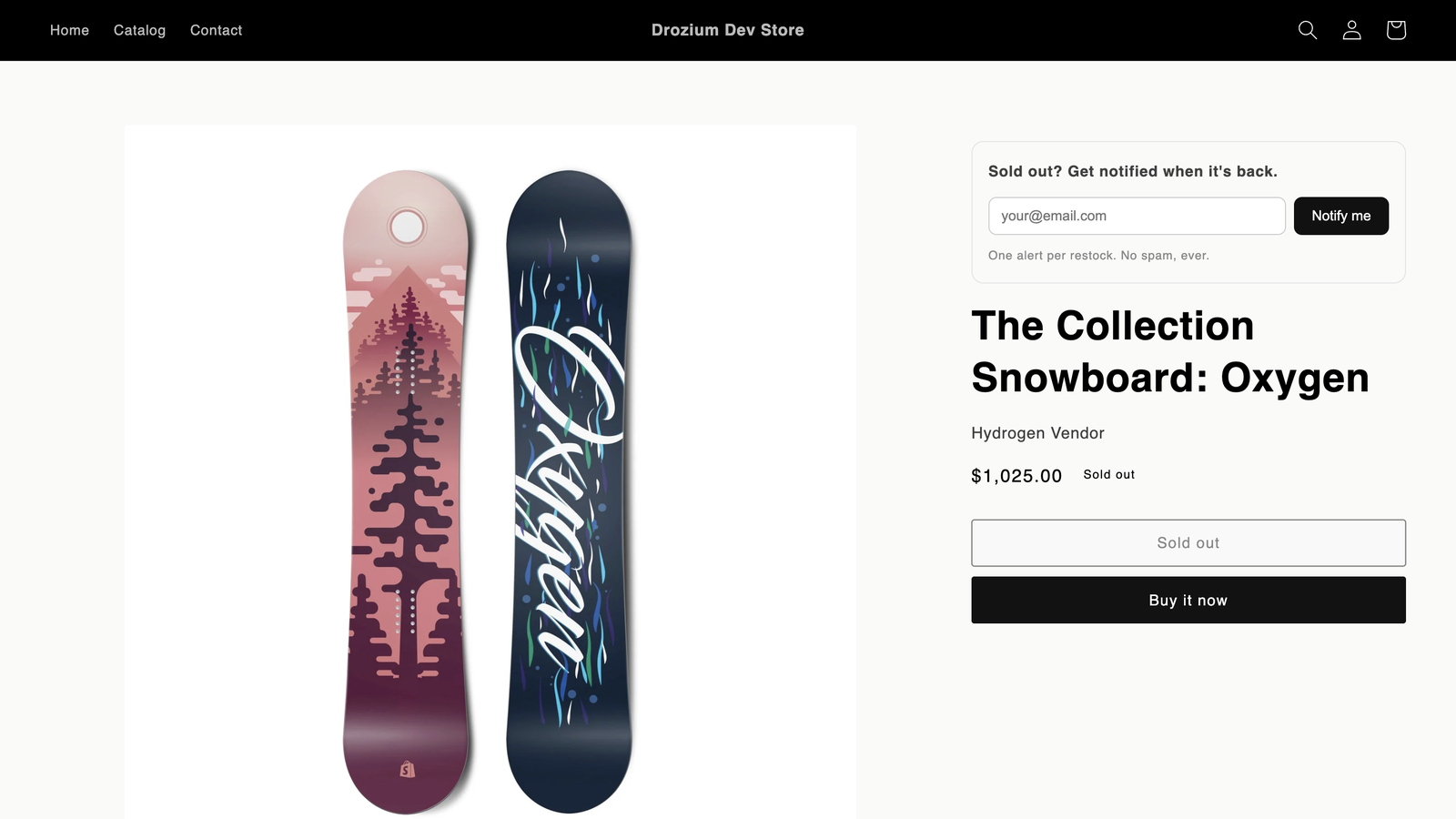
This is the only thing Soon needs in your theme. The setup guide on the app's dashboard links straight to it: switch Soon storefront on and press Save. The step then ticks itself when you come back to the app.
One switch does three things:
- Puts a Notify me button on sold-out products, in the place your theme would show Buy it now. Clicking it opens the signup form. In-stock pages are untouched, and gift cards never show it.
- Turns the Add to cart button into a Preorder button, with the payment terms underneath, on products with an active preorder offer.
- Tracks which sales your alerts brought back. Without it, attributed revenue reads $0.00 forever.
There are no blocks to place and nothing to position — a change from earlier versions, which asked you to drag a Notify me block into your product template.
2. Set your sender name
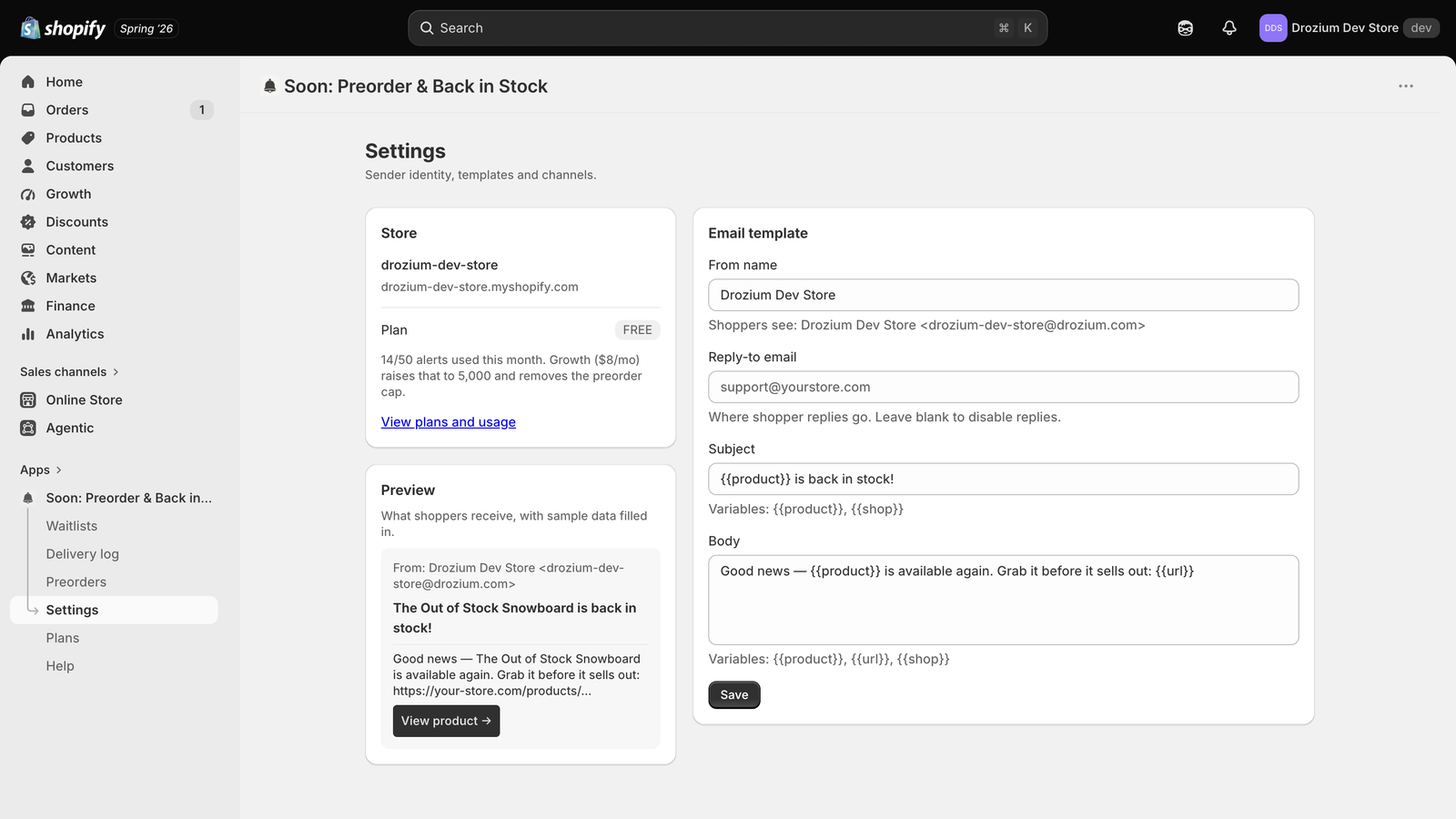
In Settings, set the From name so alerts come from your brand, and optionally a reply-to address. The preview on the left shows exactly what shoppers will receive as you type.
3. Test it end to end
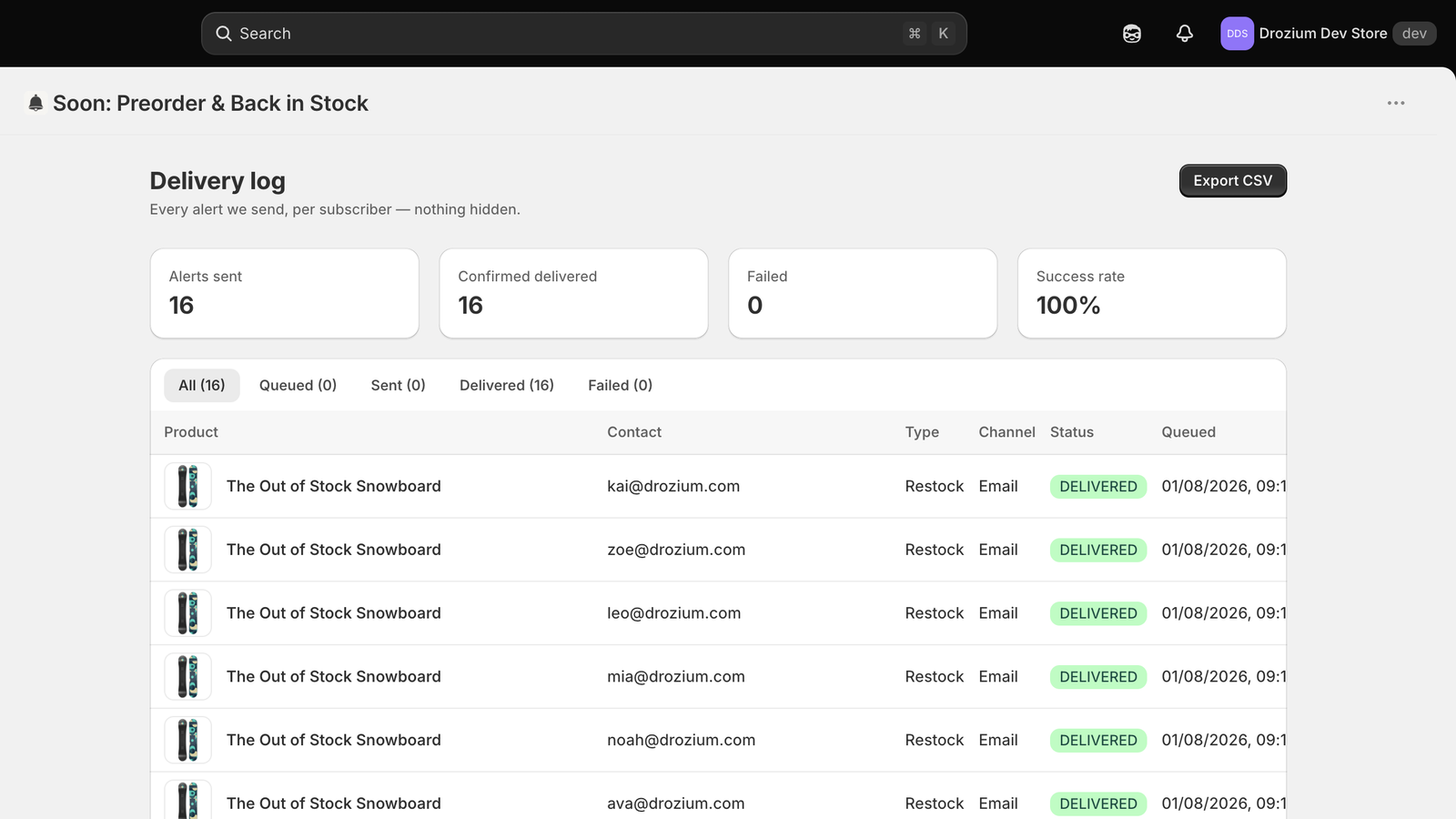
Set any product variant's inventory to 0, open its product page and sign up with your own email, then restock it. Your alert is queued within about a minute (we wait ~45 seconds to batch bulk inventory syncs) and appears on the Back in stock page's Delivery log tab with its status — queued, sent, delivered, or failed with the reason. Nothing is hidden.
Reading your waitlists
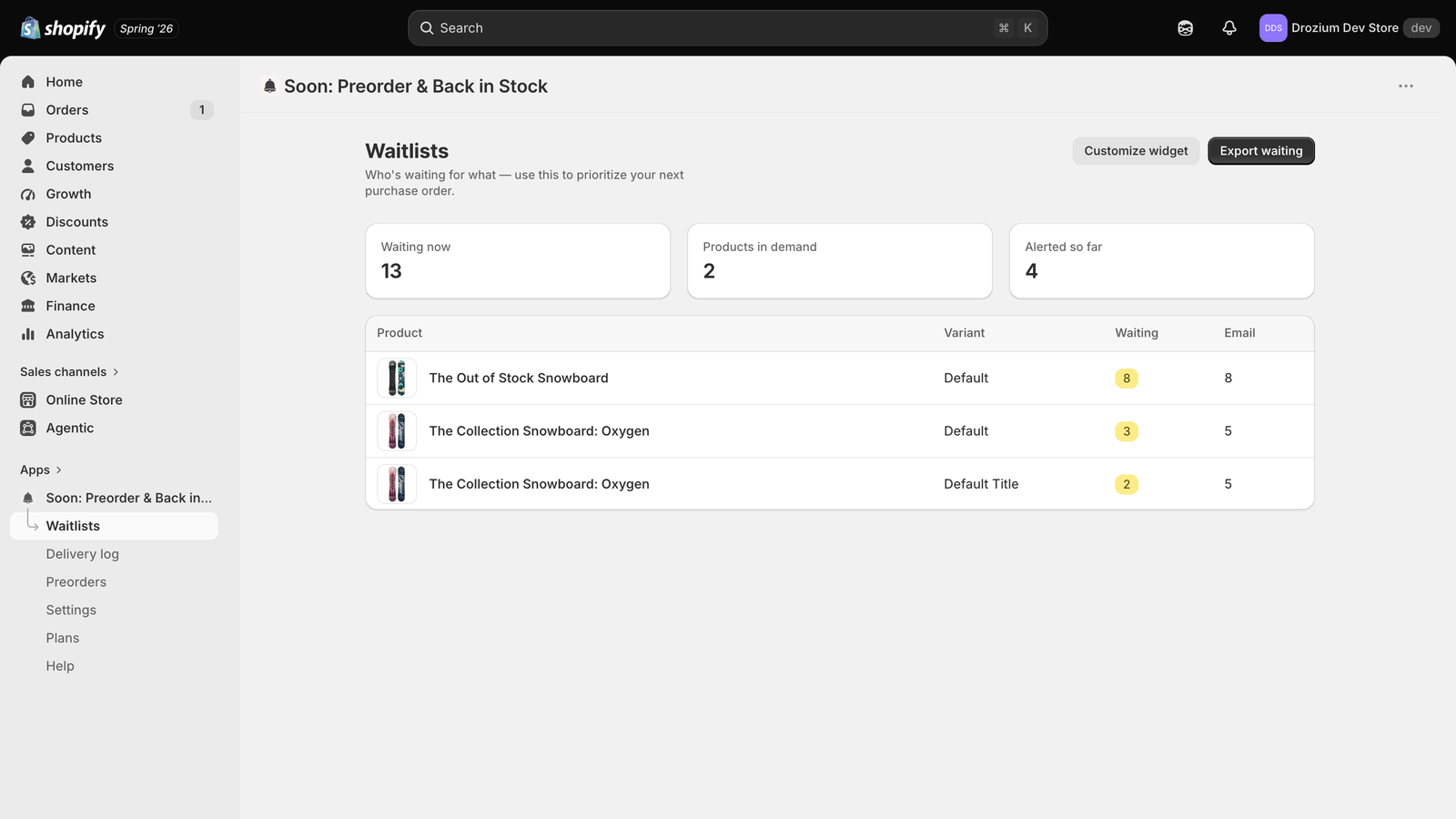
The Back in stock page has two tabs. Waitlists shows who's waiting for what, sorted by demand — a live signal for your next purchase order — and Delivery log is the send history. Each tab has its own CSV export: waiting shoppers in one file, alert history in the other, so the two together are the complete picture.
Preorders
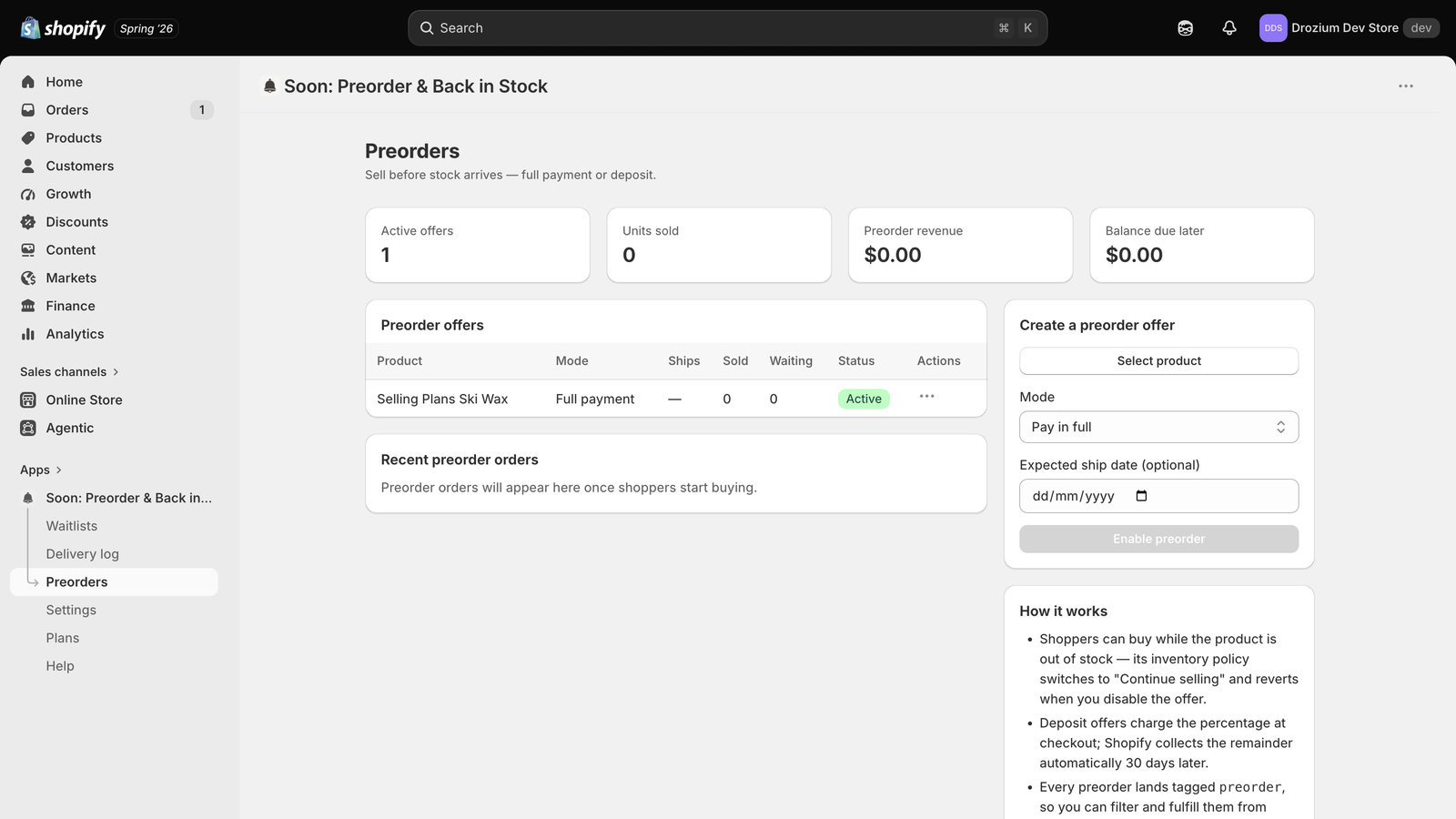
Create an offer from the Preorders page: pick a product, choose Pay in full or Deposit, optionally set an expected ship date, and enable. The order is charged in full at checkout. Shoppers can then buy while the product is out of stock — we switch its inventory policy to "Continue selling" and revert it when you disable the offer.
With the Soon storefront embed enabled (setup step 2), the product page handles the rest automatically: the Add to cart button becomes Preorder and the terms appear under it — "$150 due today — $450 charged before shipping" for a deposit offer, or the ship note for pay-in-full. Shoppers see "Preorder" again on the cart and checkout line. For a bigger, fully-customizable preorder box, add the optional Preorder Button block to your product template (theme editor → Add block → Apps).
Deposit offers: the percentage you set is charged at checkout. Soon charges the remaining balance automatically on its due date — the number of days you choose when you create the offer — using the card Shopify saved at checkout. If that charge is declined we retry over the following few days and email you if it still hasn’t gone through, so you can chase the customer or cancel the order.
Every preorder lands tagged preorder, so you can filter and fulfill them from Shopify Orders. When stock arrives for a product with open preorders, the app shows a fulfillment reminder.
Plans and limits
Free: 50 email alerts a month, 1 preorder product, the full delivery log and CSV exports. Growth ($8/mo): 5,000 alerts a month and unlimited preorder products. Custom: for higher volume, your own sending domain, or migrating waitlists from another app — ask us for a quote. When a plan hits its monthly limit we pause sending — shoppers stay on the waitlist and are alerted on the next restock after the month resets. Nothing is dropped, and email never carries per-message fees.
Moving back to Free with several preorder offers live? Nothing stops selling without warning. Switching plans inside the app asks you to disable the extras first, so you pick which ones keep running. If you cancel from the Shopify admin instead, everything keeps selling for 7 more days — the Preorders page shows the date — and after that the most recently enabled offers are paused, with the oldest kept. Preorder orders already placed are never affected.
Common questions
Why isn't the widget showing? It only renders on out-of-stock products. If a sold-out product still doesn't show it, confirm the block was added to the Product template and saved.
Gift cards? Not supported, and it's a Shopify limitation rather than a choice: gift cards never emit inventory events, so a back-in-stock alert could never fire, and there's nothing to fulfil later for a preorder. You don't have to do anything — the widget hides itself on gift card products, the signup endpoint refuses them, and they're filtered out of the preorder product picker.
Vintage (non-OS 2.0) themes? App blocks require Online Store 2.0 themes; vintage themes are a platform limitation.
Alerts landing in spam? Alerts are sent from our verified domain with your store's name. Early sends to a brand-new list can land in Promotions; delivery status in the log reflects what the receiving server reported.
Can alerts come from my own email address? Set Reply-to in Settings to your address and every shopper reply lands in your inbox. The visible sender stays on our domain on purpose: it's verified and warmed, and a brand-new sending domain gets filtered to spam — which would cost you the sales the alert was meant to make. If you need your own domain on the From line too, that's a Custom plan; tell us about your store.
Still stuck?
Email support@drozium.com — a human reads it. Include your store's .myshopify.com domain so we can look at your delivery log with you.